Instructions for using the web driver
Before using the driver host computer, please connect the keyboard to the computer.
Driver URL:https://www.sdcx-tech.com
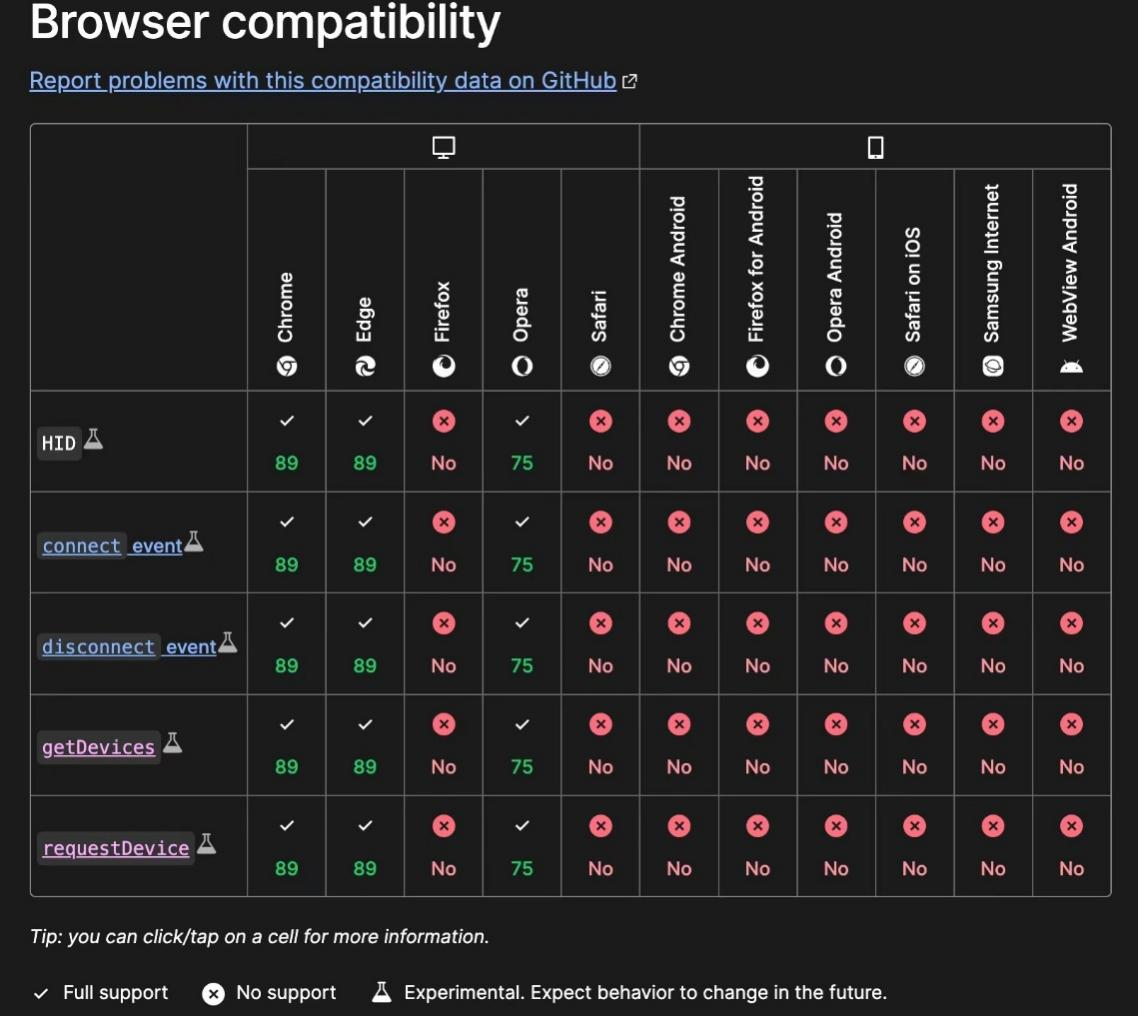
Note: The current driver needs the browser to support web-hid, commonly used browsers such as Google Chrome, Microsoft Edge and other browsers support this function, if you can't use it, please check whether the browser version is updated. Commonly used browsers are shown in the figure below:
1.Interface Introduction
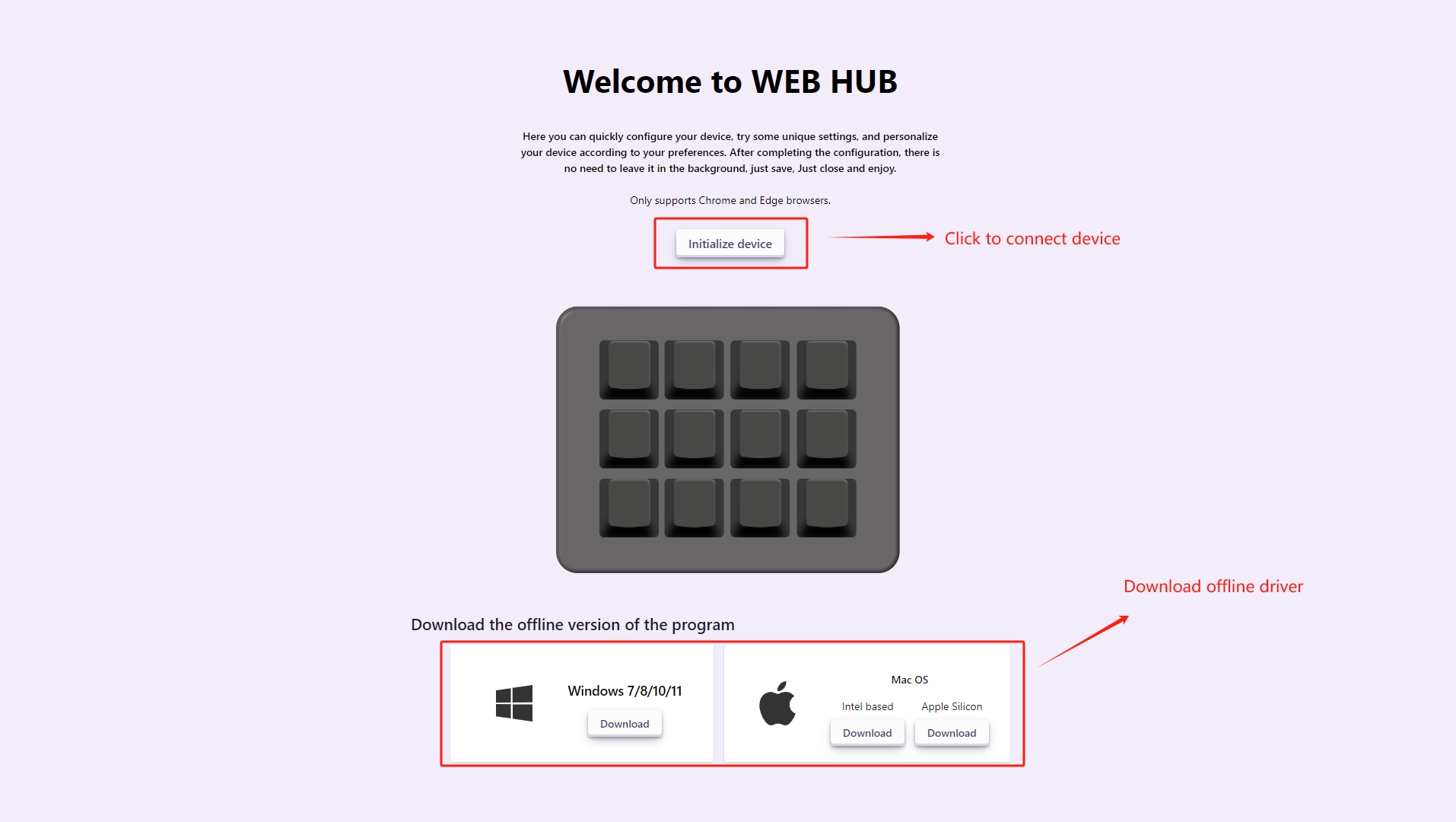
Initialize the interface
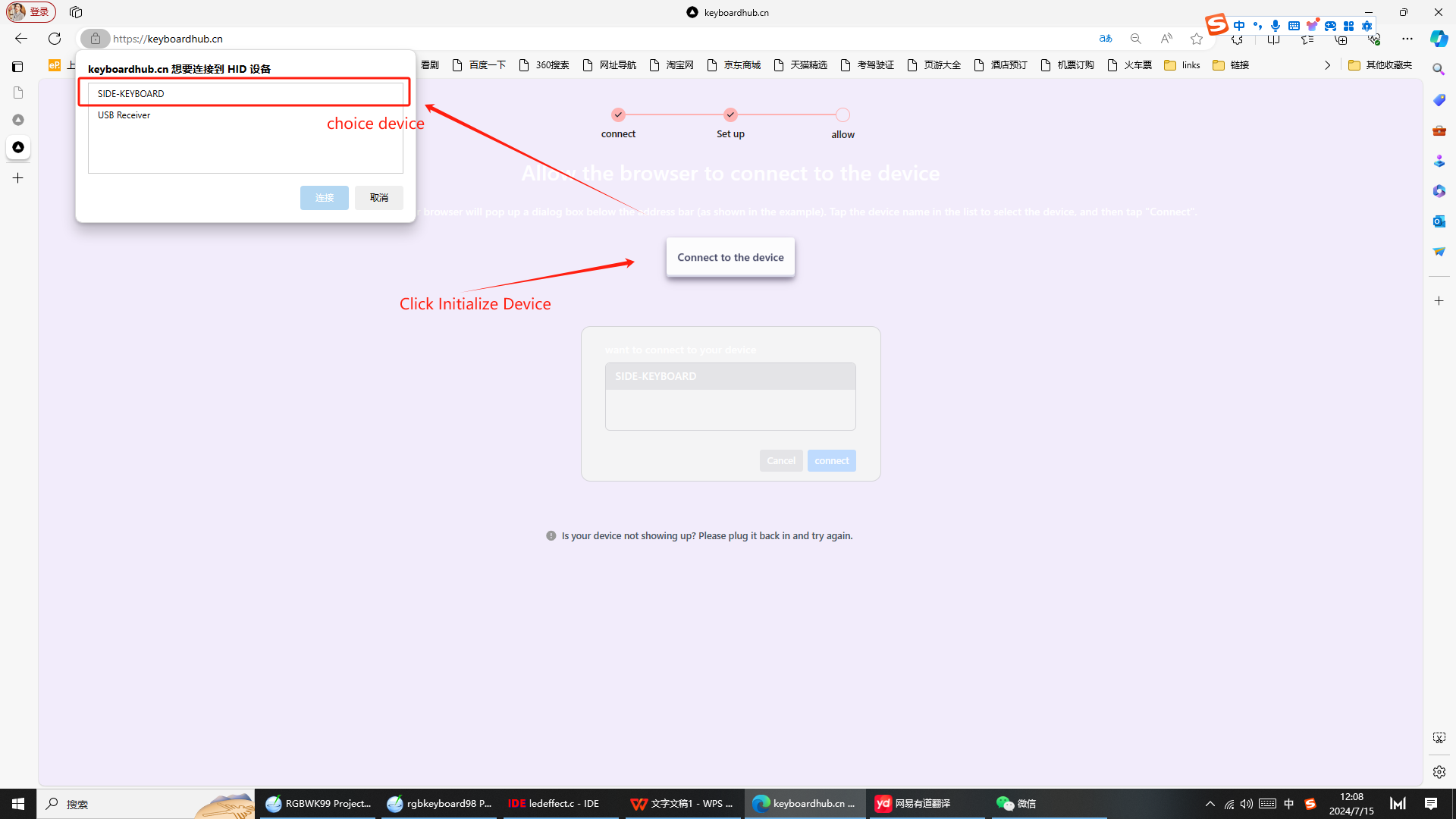
Edition Interface
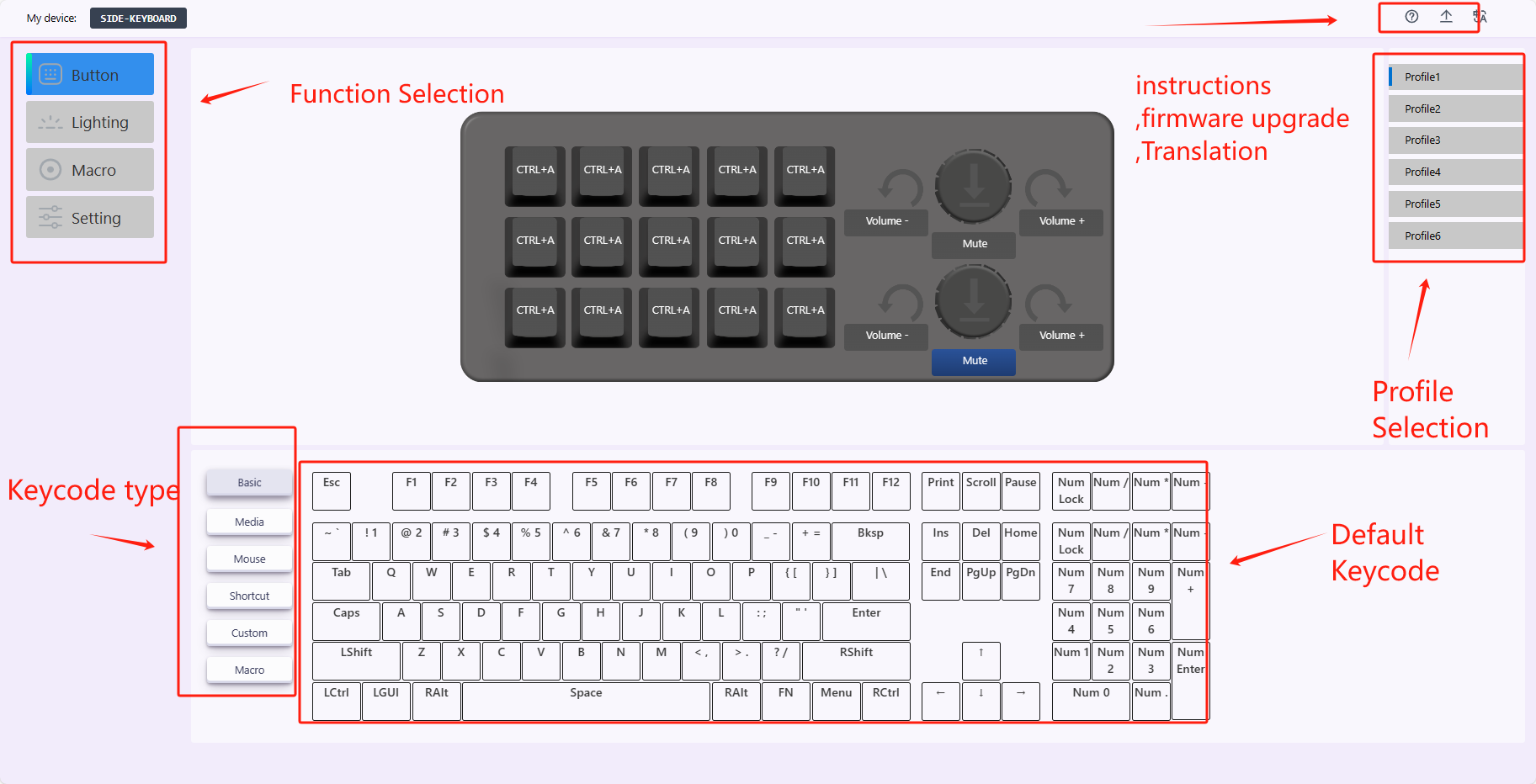
Introduction to preset function
* The base key-value Including all characters,numbers,function keys on a normal keyboard. * Multimedia It includes common multimedia functions such as volume increase and decrease,playback,pause,etc. * Mouse The left,right,and middle click of the mouse are preset, as well as the function of the two side buttons. * Key Combinations Including the commonly used copy-paste,truncation and other key combination functions. * Custom features This function is preset for developers,such as turning On and Off lighting effects,switch lighting effect,etc. * Macro You can map a recorded macro to keystroke.Software Upgrades
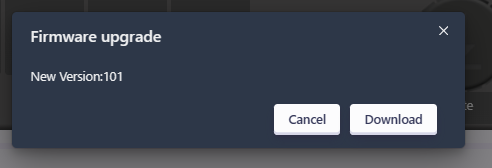
* When the driver is opened after the keyboard is connected, if the firmware version is too low, a pop-up message is displayed indicating that the firmware version is too low and you are advised to upgrade it * After entering the driver, click the arrow option in the upper right corner,If the version is too low, a later firmware update is providedOffline Version download
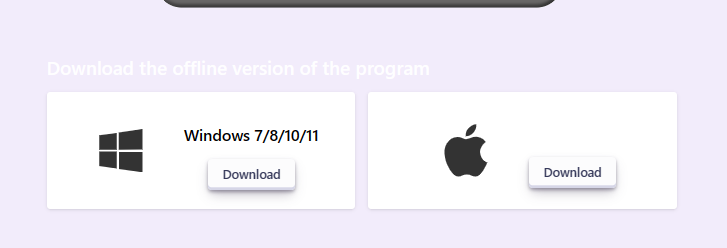
Download the offline version at the bottom of the initialization screen for users who do not support Web-Hid.
If your browser does not support the connection driver, please download the offline version driver.
Language Selection
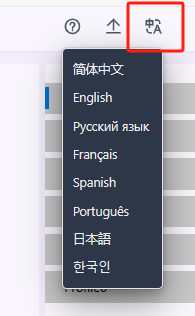
After connecting the driver, click the translation option in the upper right corner. This driver presets Simplified Chinese, English, Russian, French, Spanish, Portuguese and other common languages. Users can choose their own language according to their own situation
Basic Function
Key mapping
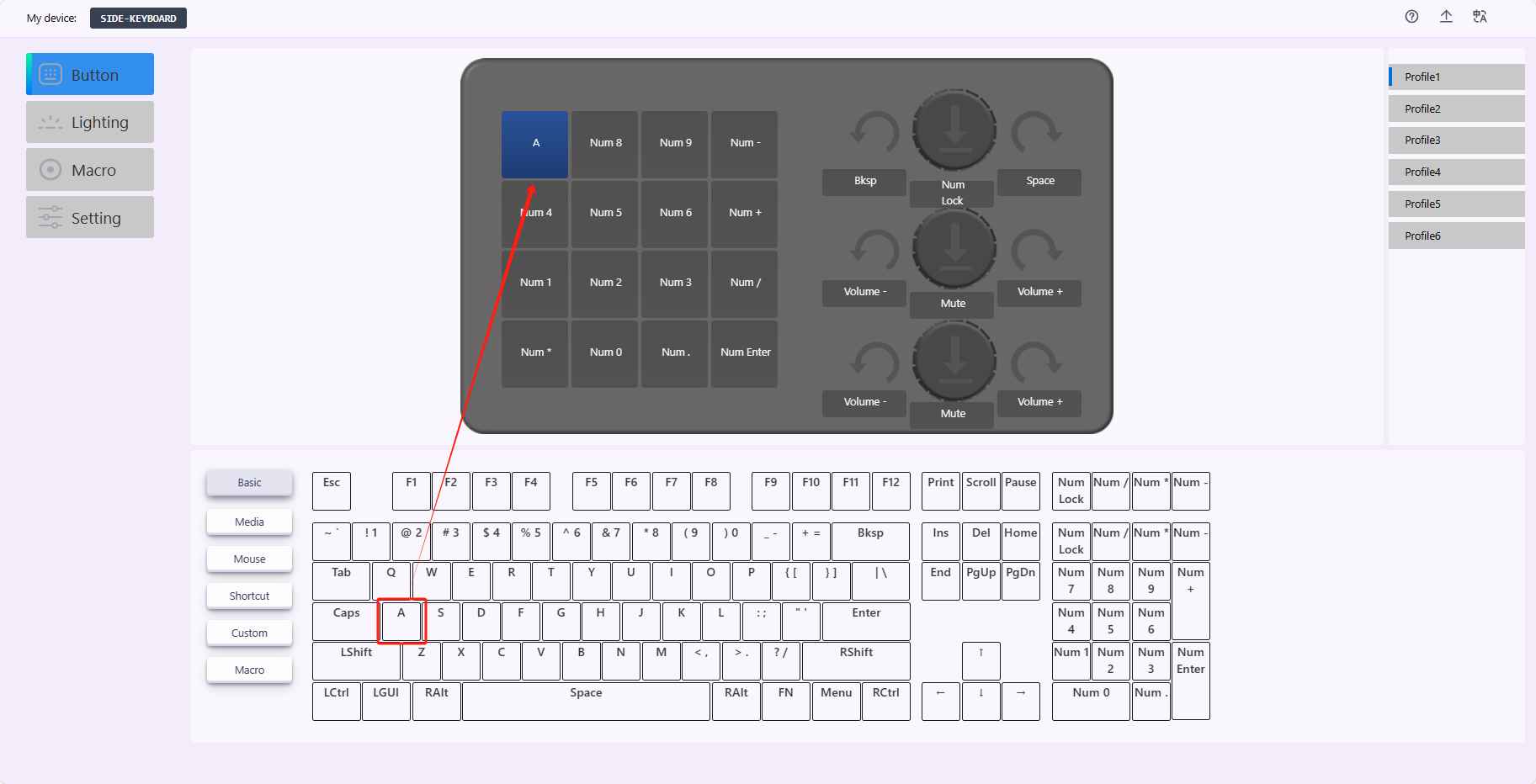
Select the key to be mapped in the keyboard editing area, and then click the key value to be changed in the key mapping area, or drag the key value in the key value area to the corresponding key in the keyboard editing area
Key combination mapping
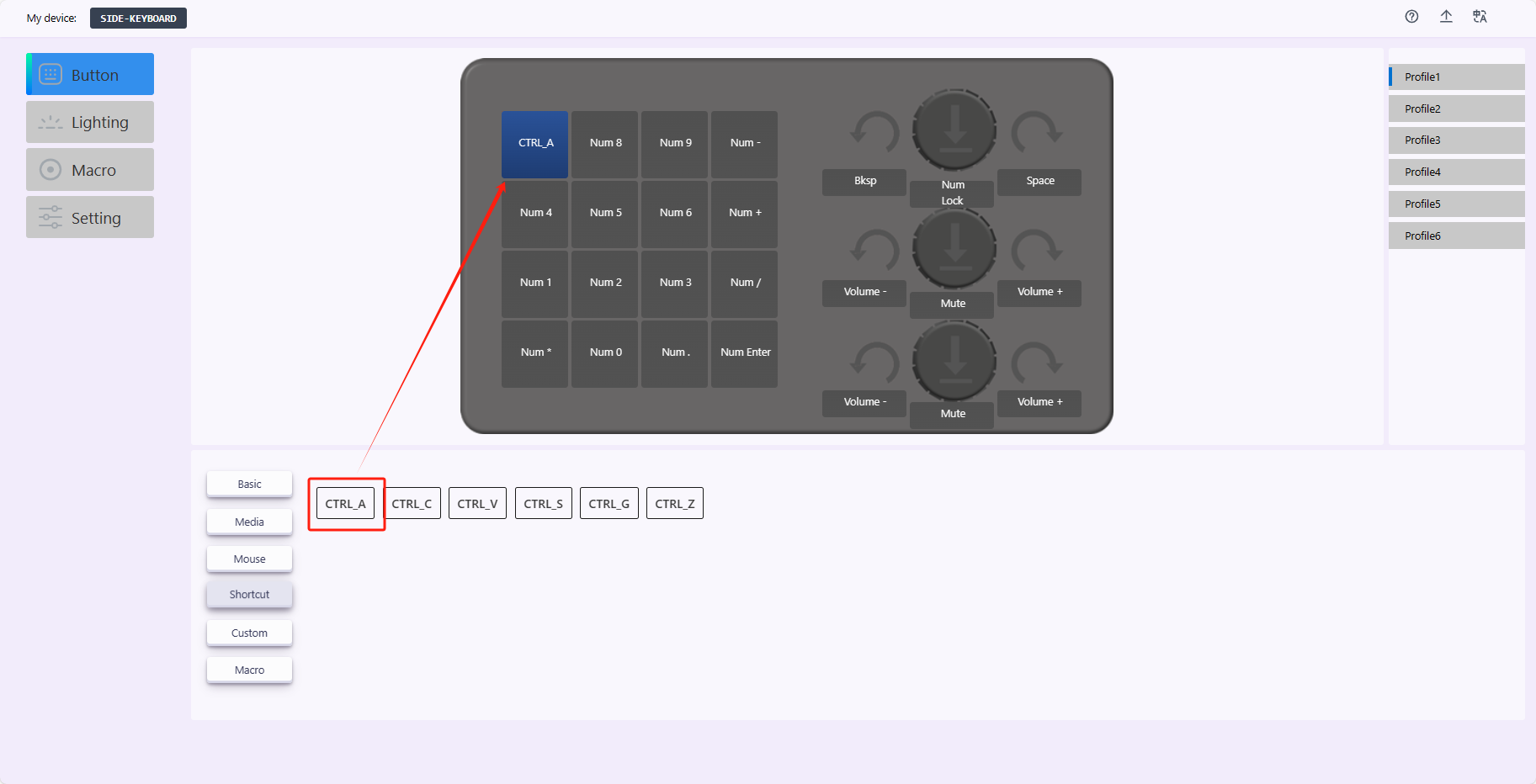
The default key combination function is common. The mapping operation is the same as the above. Later updates will support any user-defined key combination function.
Macro recording and mapping
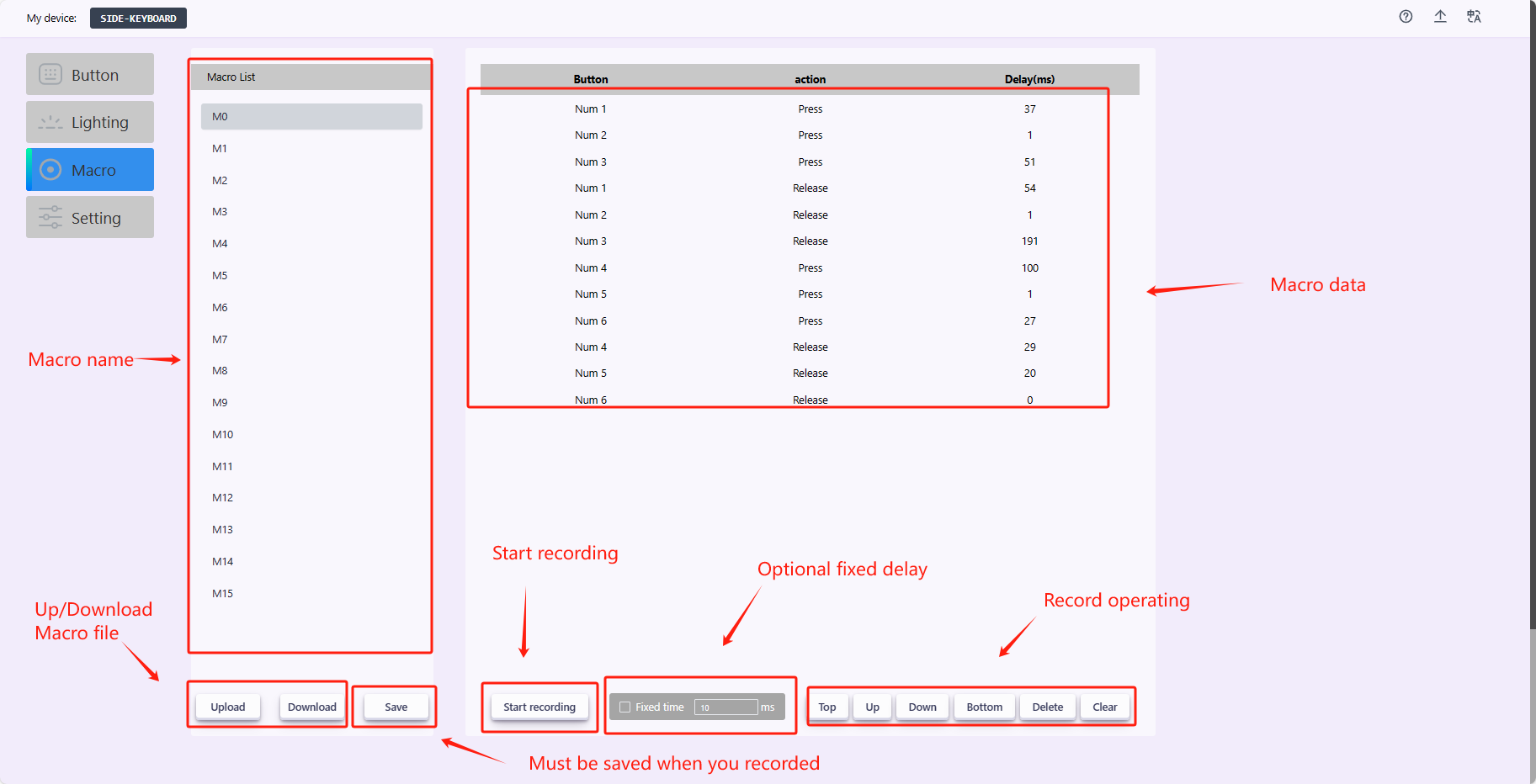
Select the macro function, select the macro name you want to record in the left macro list, click Start recording, and then click the key value you want to record, you can also fix the key delay. Save the macro after recording. The macro key mapping operation is the same as above.
Button Layer Switching
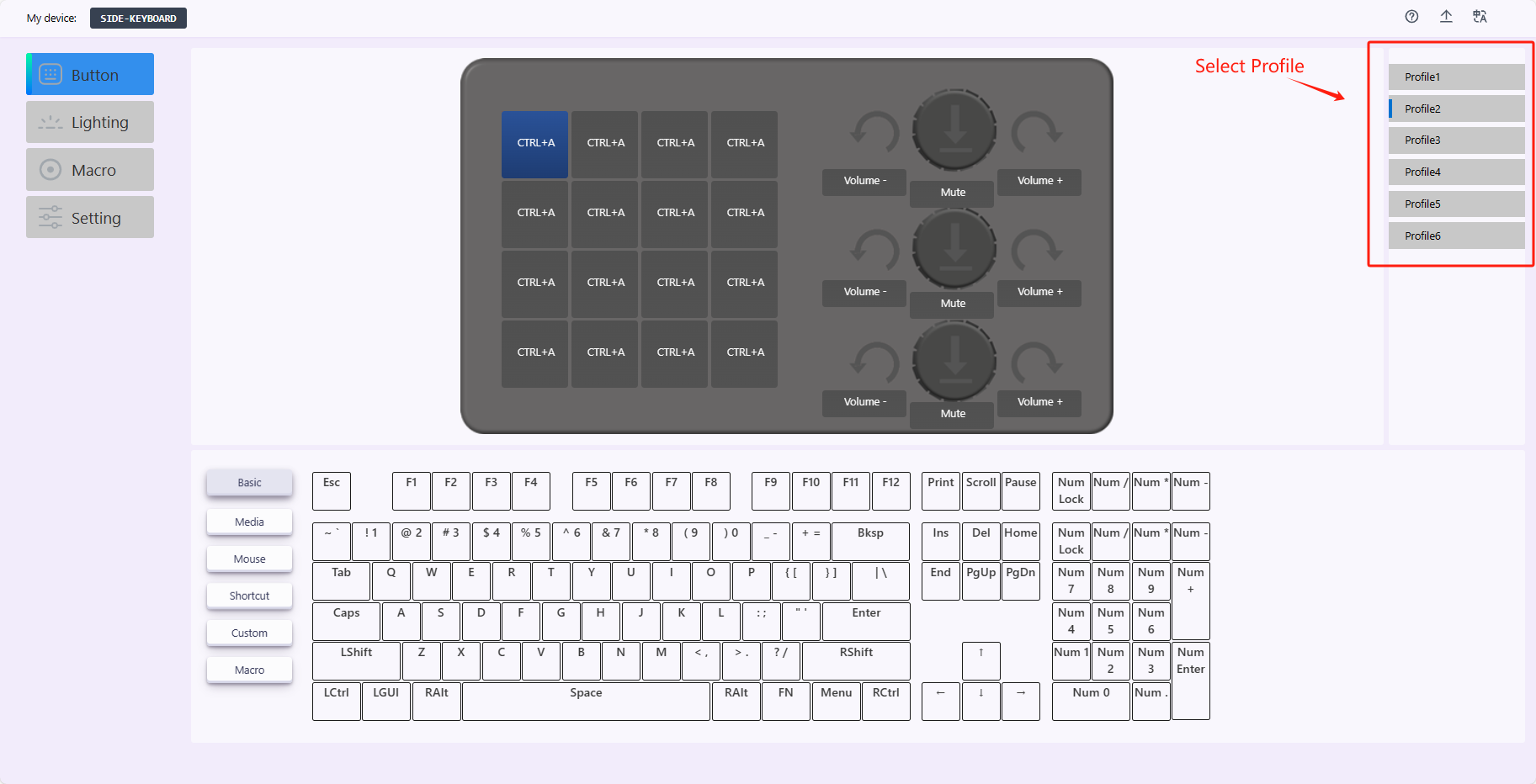
Select the key function in the functional area, then select the desired layer from the button layer option on the right, and the keyboard presets six layers of key values. The initial key value of each layer is different, and the key value modification can be saved separately.
Lighting effect information setting
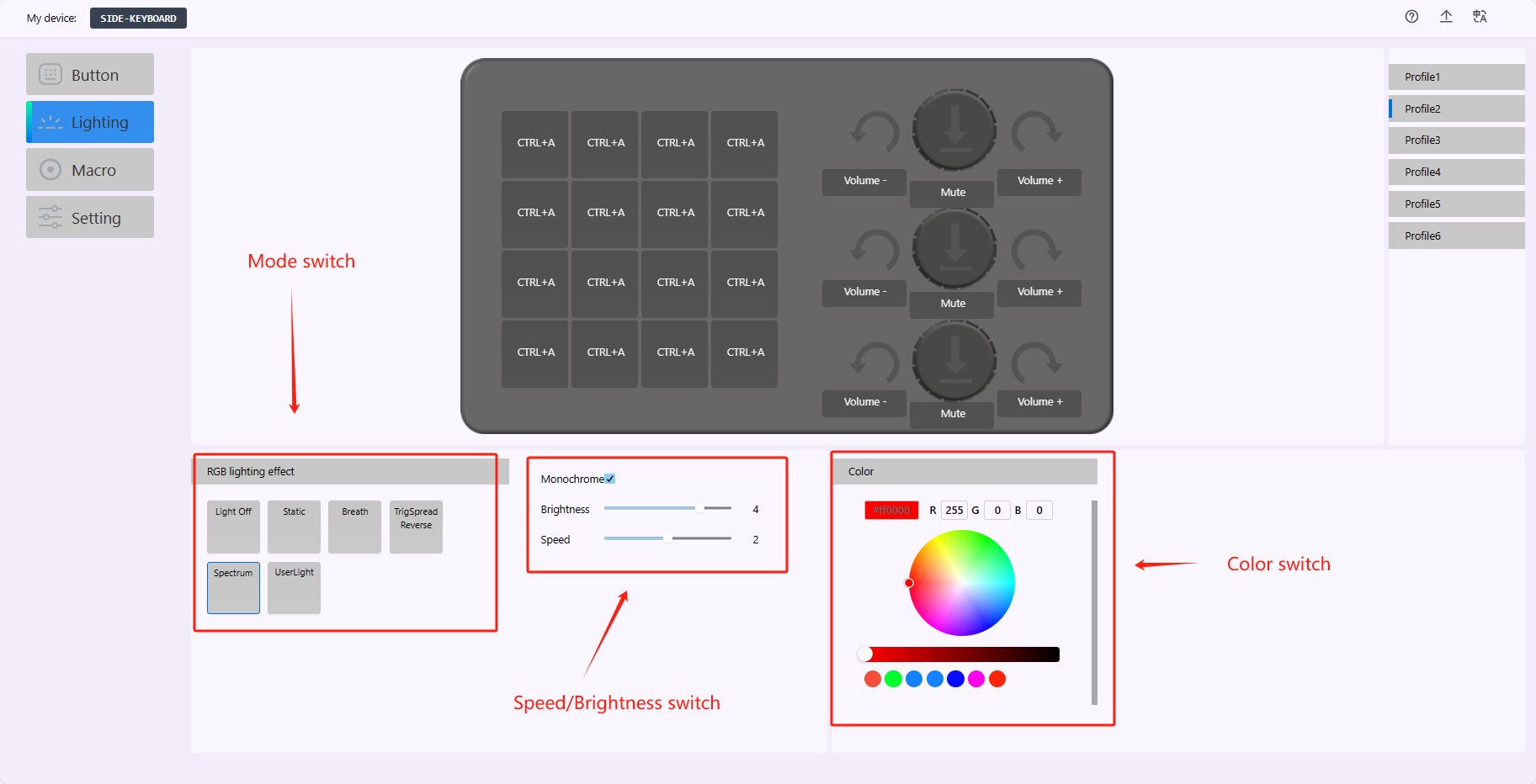
Function area select the light, you can choose the light effect/light effect speed brightness/color, etc., in which the custom light can be lit according to user needs.
The keyboard is factory reset
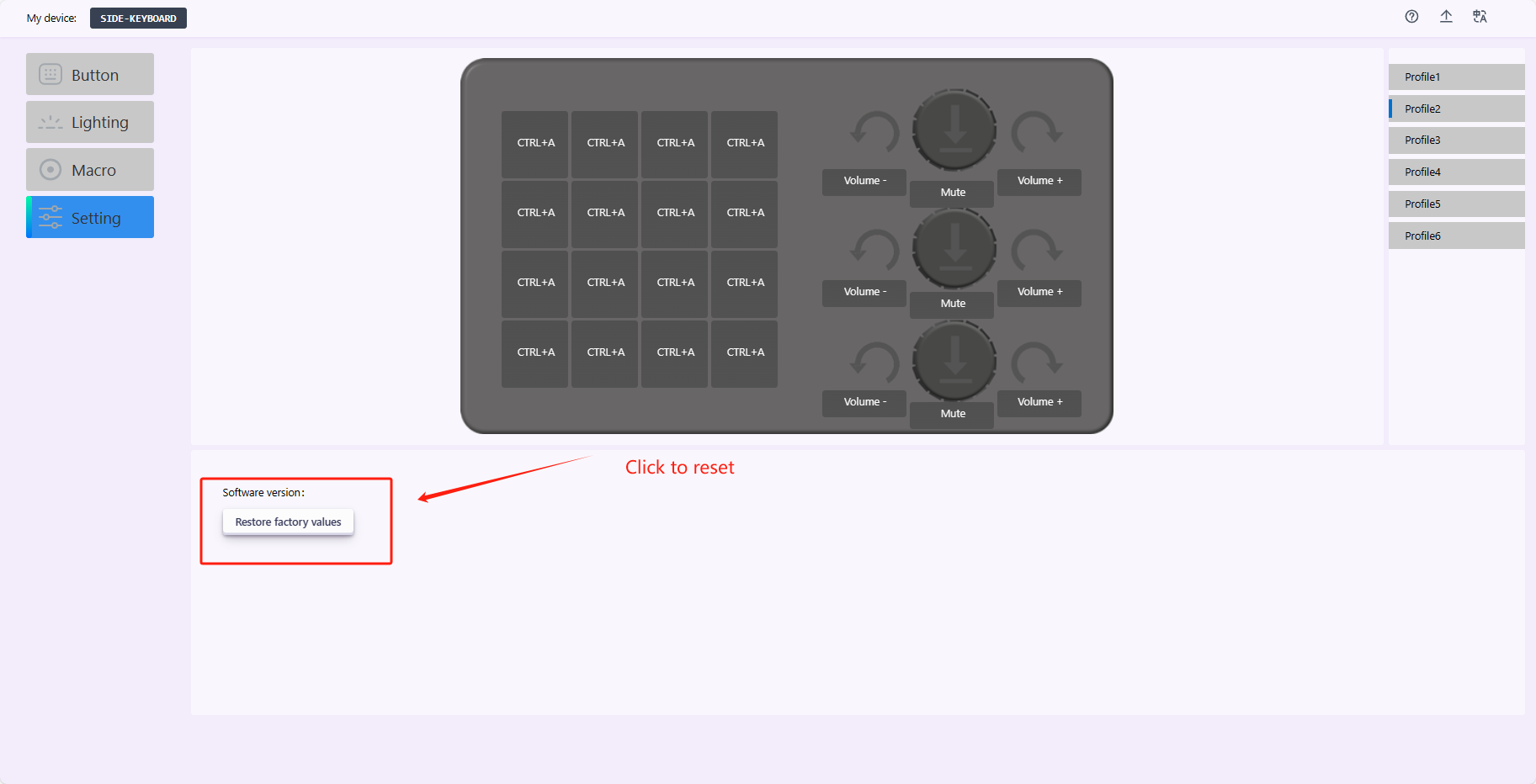
Select Settings on the ribbon and click the Reset button. Reset the keyboard to factory settings.